From packets to pixels: how the internet actually works
Written onI have spent my whole career close to the web's machinery: five years maintaining Swagger tools, these days SpecLynx, UseArazzo and SwaggerExpert, plus daily work building tools that help agents talk to APIs. HTTP is where I live. And yet, when I recently stopped to examine my mental model of the internet itself, I realized how much of it I had never actually verified.
Most of what an experienced engineer knows about the layers beneath their own code is inherited rather than learned: absorbed from documentation skimmed at 2 a.m., from a colleague’s offhand explanation, from a bug that got fixed without ever being fully understood. That model works. It’s mostly right. But “mostly right” stays invisible until the day a DNS change stubbornly refuses to take effect, or a retried request duplicates an order, and you discover the gap had been sitting there the whole time.
So I went back and checked. Not the exotic corners: the basics. What a packet actually is. Why a bare domain
traditionally can’t be a CNAME. What “DNS propagation” really means (nothing propagates anywhere). Where a
browser spends its time between receiving bytes and showing you pixels. Most of it confirmed what I already
believed. A few things corrected me.
This article is the write-up of that pass: the explanation I wish I’d been handed years ago, and the one I’d now give to anyone who builds on the web without having looked underneath it. It walks the whole path once, end to end: each section builds on the previous one, and each ends with hands-on exercises that need nothing more than a terminal and a browser.
Run them. That part isn’t decoration. Verifying something yourself is the difference between knowing it and
having heard it, a distinction worth defending now that a confident, plausible explanation is always one
prompt away. A language model will happily tell you how DNS works. dig +trace will show you.
A network of networks: packets, IPs, and ports
The internet is not a single thing you connect to. It is a network of networks: your home network, your ISP’s network, university networks, data-center networks, all agreeing to pass traffic between each other using the same set of rules (protocols). Nobody owns or runs the whole thing.
So where do separate networks physically touch? Mostly at Internet Exchange Points (IXPs). An IXP is, quite literally, a building (or a few racks in a data center) containing a large shared network switch. ISPs, cloud providers, and content companies each rent a port on that switch and agree to exchange traffic with each other directly, an arrangement called peering. Without an IXP, your ISP would have to pay intermediate carriers to haul your video stream across the country and back; with one, both networks plug into the same room and hand packets straight to each other. That keeps traffic local (a stream between two Prague networks never needs to leave Prague), cuts costs, and shortens the path your packets travel. The largest exchanges, like DE-CIX in Frankfurt or AMS-IX in Amsterdam, move tens of terabits per second at peak. Cooperation through shared protocols and peering agreements, not central control, is what holds the internet together.
One distinction worth fixing early: the internet is not the web. The internet is the plumbing: cables, routers, addresses, and the protocols that move data between machines. The web (websites, browsers, HTML, links) is just one application running on top of that plumbing, alongside email, video calls, online games, and messaging apps. This article covers the plumbing first, then climbs up to the web.
When you open a website, two machines are involved:
- Client: the machine that asks for something (your laptop, your phone, a script).
- Server: the machine that answers (a computer somewhere running software that listens for requests).
“Client” and “server” describe roles, not hardware. The same machine can be a client in one exchange and a server in another.
IP addresses: how machines find each other
Every device directly reachable on the internet has an IP address, a numeric label that works like a postal address for computers.
- IPv4: four numbers 0–255, e.g.
142.250.185.78. Only about 4.3 billion possible addresses exist, and we’ve effectively run out. - IPv6: much longer hex addresses, e.g.
2a00:1450:4001:82f::200e. Designed to never run out.
Because IPv4 addresses are scarce, your home devices usually share one public IP address. Your router hands
out private addresses (like 192.168.1.x) internally and translates between the two, a trick called
NAT (Network Address Translation).
Packets: how data actually travels
Data is never sent as one continuous stream. It’s chopped into small chunks called packets (typically ~1,500 bytes). Each packet carries the destination IP, the source IP, a sequence number, and a slice of the actual data. The sequence number records the chunk’s position in the original message: packet 1, packet 2, packet 3, and so on. It’s what lets the receiving machine put the chunks back together in the right order, and notice when one never arrived so it can be re-sent.
Packets travel independently. Two packets from the same message may take different routes through the network and arrive out of order; the receiving machine uses the sequence numbers to reassemble them. This design makes the internet resilient: if one route fails, packets simply flow around it. Between your machine and a server, packets hop through a chain of routers, each forwarding the packet closer to its destination.
Protocols: the shared rules
None of this works unless every machine speaks the same language. That’s what protocols are: agreed-upon formats and procedures, stacked in layers:
| Layer | Protocol | What it does |
|---|---|---|
| Addressing & routing | IP | Gets packets from one machine to another |
| Transport | TCP | Reliable, ordered delivery; retransmits lost packets |
| Transport | UDP | Fast, no guarantees; good for video calls, games |
| Application | HTTP, SMTP, DNS… | Meaning of the data (web pages, email, name lookups) |
TCP is worth understanding: before sending data, client and server perform a handshake (SYN → SYN-ACK → ACK) to establish a connection. TCP then numbers every byte, acknowledges receipt, and re-sends anything lost. The web runs mostly on TCP (though HTTP/3 now runs on QUIC, explained in the HTTP section).
Ports: many conversations, one machine
A server has one IP address but runs many services. Ports (numbers 0–65535) distinguish them, like apartment numbers within one building:
| Port | Service |
|---|---|
| 80 | HTTP (web, unencrypted) |
| 443 | HTTPS (web, encrypted) |
| 22 | SSH (remote shell) |
| 25 / 587 | SMTP (email) |
| 53 | DNS |
So a full “address” for a conversation is really IP + port: 142.250.185.78:443 means “the service
listening on port 443 at that machine.”
You already use this daily as a developer without leaving your desk. localhost is a reserved name
(resolving to 127.0.0.1) that means “this very machine”: client and server both on your own computer. When
you run a dev server and open http://localhost:3000, your browser is the client, your project is the server,
and 3000 picks it out among everything else running locally. Dev tools grab high, unclaimed ports by
convention (3000, 5173, 8000, 8080) because the low, well-known ones require admin rights and are
spoken for.
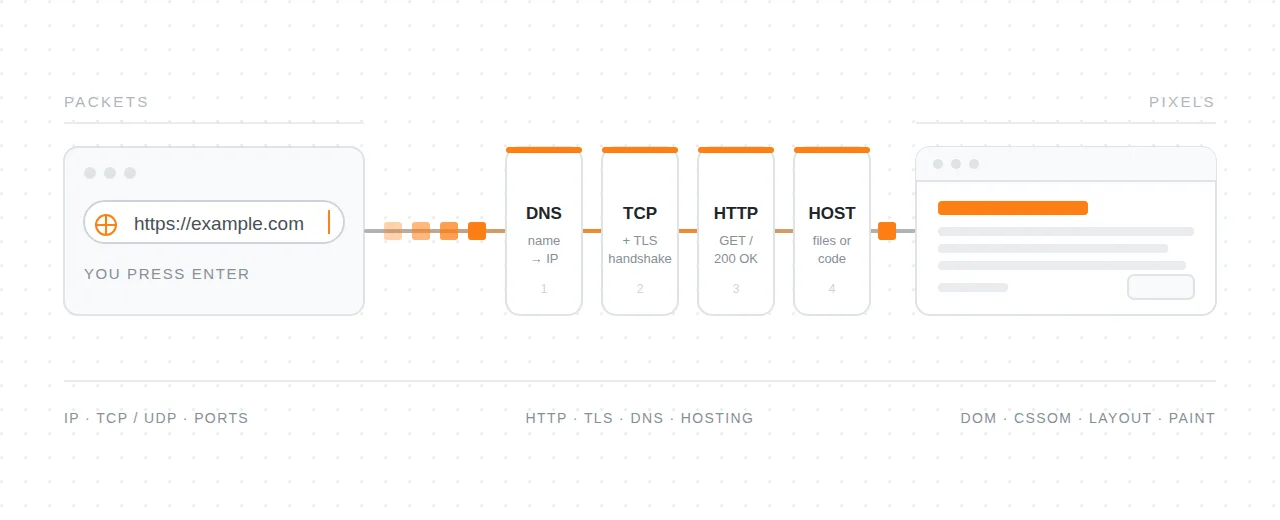
The whole trip, previewed
When you visit a website, roughly this happens; the rest of this article unpacks each step:
- Your machine looks up the site’s IP address (DNS).
- It opens a TCP connection to that IP on port 443.
- Client and server negotiate encryption (TLS).
- Your browser sends an HTTP request.
- The server, wherever the site is hosted, answers; the response is split into packets and routed hop by hop.
- Your browser reassembles and renders it.
🧪 Try it yourself
# What's my machine's local IP?
ip addr        # Linux
ipconfig       # Windows

# What IP does a domain resolve to? How long is the round trip?
ping example.com

# Watch your packets hop router by router
traceroute example.com     # macOS / Linux
tracert example.com        # Windows
Then find your public IP (search “what is my IP”) and compare it to your local one. They differ; that’s NAT at work.
✅ Check yourself
Why can two packets from the same download arrive out of order?
Because routers forward each packet independently, two packets may take different routes with different delays. The receiver uses the sequence numbers to restore the original order.
What problem does NAT solve, and what created that problem?
NAT lets all the devices in your home share a single public IP address. The problem it works around is IPv4 address scarcity: the protocol’s design allows only about 4.3 billion addresses, far fewer than there are devices in the world.
Your browser connects to 93.184.216.34:443. What do the two parts mean?
The IP address (93.184.216.34) identifies the machine; the port (443, the HTTPS port) identifies which
service on that machine the connection is for.
Why does a video call prefer UDP while a file download prefers TCP?
A call values speed over completeness: a lost video frame is better skipped than retransmitted too late, so UDP’s “send and forget” fits. A download must be complete and correctly ordered down to the last byte, which is exactly what TCP guarantees.
Speaking HTTP: requests, responses, and status codes
HTTP (HyperText Transfer Protocol) is the application-level protocol browsers and servers use to exchange web content. It’s a simple request-response conversation in (mostly) plain text: the client asks, the server answers, done.
HTTP is stateless: each request stands alone. The server doesn’t inherently remember you between requests. Anything that feels stateful (being logged in, a shopping cart) is built on top, usually with cookies or tokens sent along with every request.
Anatomy of a request
GET /articles/42 HTTP/1.1
Host: example.com
User-Agent: Mozilla/5.0
Accept: text/html
Cookie: session=abc123
Four parts: a method (GET), a path (/articles/42), headers (Name: value metadata lines), and
an optional body: data you’re sending, e.g. form contents or JSON. GET requests carry no body;
POST/PUT usually do.
| Method | Meaning | Safe? | Idempotent? |
|---|---|---|---|
GET | Read a resource | Yes | Yes |
POST | Create / submit data | No | No |
PUT | Replace a resource | No | Yes |
PATCH | Partially update | No | Not guaranteed |
DELETE | Remove a resource | No | Yes |
Safe = doesn’t change anything on the server. Idempotent = doing it twice has the same effect as doing it
once, which is why retrying a POST risks a duplicate order, while retrying a PUT doesn’t.
Keep in mind these meanings are conventions, not enforcement: the server runs whatever code it wants for any method. The conventions still matter, because everything around you (caches, browsers, proxies, retry logic) assumes you follow them.
Paths and query parameters
The path is how the server decides which resource or piece of code handles the request. On a static
site, /about might map straight to an about.html file. In an API, paths typically name data and its
hierarchy:
/users            → the collection of users
/users/42         → the user with id 42
/users/42/posts   → that user's posts
Query parameters, the ?key=value&key2=value2 tail of a URL, refine the request without changing which
resource it targets:
/products?category=books&sort=price&page=2Same resource (/products), but filtered, sorted, and paginated. Filtering, searching, sorting, and
pagination are the classic jobs of query parameters. The server reads them as ordinary key-value inputs;
nothing about them is magic.
Anatomy of a response
HTTP/1.1 200 OK
Content-Type: text/html; charset=utf-8
Content-Length: 5320
Cache-Control: max-age=3600
Set-Cookie: session=abc123; HttpOnly

<!DOCTYPE html>
<html>...
A status line, then headers, then the body, which carries the actual content.
The first digit of the status code tells you the category. Memorize the shape, not the full list: 2 good, 3 look elsewhere, 4 your fault, 5 my fault.
| Range | Meaning | Common examples |
|---|---|---|
| 1xx | Informational | 101 Switching Protocols |
| 2xx | Success | 200 OK, 201 Created, 204 No Content |
| 3xx | Redirection | 301 Moved Permanently, 302 Found, 304 Not Modified |
| 4xx | Client made a mistake | 400 Bad Request, 401 Unauthorized, 403 Forbidden, 404 Not Found, 429 Too Many Requests |
| 5xx | Server failed | 500 Internal Server Error, 502 Bad Gateway, 503 Service Unavailable |
📋 Headers worth knowing
| Header | Direction | Purpose |
|---|---|---|
Host | request | Which site on this server you want (one IP can host many sites) |
Content-Type | both | Format of the body (text/html, application/json…) |
Authorization | request | Credentials, e.g. Bearer <token> |
Cookie / Set-Cookie | req / resp | Client-side state, sessions |
Cache-Control | both | Whether/how long the response may be cached |
Location | response | Where a redirect points |
Accept | request | Formats the client can handle |
Not just pages: HTTP is the API protocol
Everything above applies far beyond loading web pages. When one program talks to another over the web (a mobile app syncing messages, JavaScript refreshing a feed, one backend calling another), it’s almost always the same HTTP machinery carrying JSON instead of HTML:
GET /api/me            →    200 OK
                            Content-Type: application/json

                            { "id": 7, "name": "Sam", "role": "admin" }
Nothing new is happening: same methods, same status codes, same headers; only the body format and the consumer change. The response isn’t shown to a human; code reads it and updates the page or acts on it. This is why learning HTTP once pays off twice: it’s both how websites load and how virtually every web API works.
HTTPS: HTTP + encryption
Plain HTTP is readable by anyone on the path: your Wi-Fi neighbors, your ISP, anyone in between. HTTPS wraps HTTP inside TLS (Transport Layer Security), which adds three guarantees:
- Encryption: nobody in the middle can read the traffic.
- Integrity: nobody can modify it undetected.
- Authentication: a certificate, signed by a trusted Certificate Authority, proves you’re talking to
the real
example.com, not an impostor.
The padlock in your browser means the TLS handshake succeeded and the certificate checks out. It does not mean the site itself is trustworthy; phishing sites use HTTPS too. Certificates are free today (Let’s Encrypt), so there is essentially no excuse for a site to be HTTP-only.
HTTP versions in one paragraph
HTTP/1.1 (1997) allows one request at a time per connection, so browsers open several connections in parallel to compensate. HTTP/2 (2015) multiplexes many requests over one connection and adds binary framing and header compression. HTTP/3 (2022) replaces TCP with QUIC. A common confusion: QUIC is not “just UDP”. UDP alone gives you none of TCP’s guarantees: no ordering, no retransmission, no concept of a connection. QUIC is a full transport protocol that rebuilds those guarantees on top of UDP, and adds two things TCP can’t offer: TLS encryption built into the handshake (fewer round trips before data flows), and independent delivery per request, so one lost packet stalls only the request it belongs to instead of everything behind it, as happens with TCP. As a developer you rarely change your code between versions; the semantics (methods, statuses, headers) stay the same.
🧪 Try it yourself
# See a raw response, headers included
curl -i https://example.com

# Headers only
curl -I https://example.com

# Follow redirects and watch them happen
curl -iL http://github.com

# Send JSON
curl -X POST https://httpbin.org/post \
  -H "Content-Type: application/json" \
  -d '{"hello": "world"}'
Then open DevTools → Network, reload any page, and click a request. Everything in this section is right there: method, status, headers, body.
✅ Check yourself
Why does a retry of a POST risk creating a duplicate order, while retrying a PUT doesn't?
POST is not idempotent: each attempt creates a new resource, so two attempts can mean two orders. PUT
replaces the resource with the same content, so repeating it leaves the server in the same state.
What's the difference between 401 and 403?
401 Unauthorized means “you haven’t proven who you are”: credentials are missing or invalid, so
authenticate and try again. 403 Forbidden means “I know who you are, and you’re still not allowed.”
What three guarantees does TLS add on top of HTTP?
Encryption (nobody in the middle can read the traffic), integrity (nobody can modify it undetected), and authentication (a certificate proves you’re talking to the real site).
The server sends Cache-Control: max-age=3600. What happens if you reload the page after ten minutes?
Nothing goes over the network. max-age=3600 allows caching for one hour, so ten minutes in, the browser
serves its cached copy from disk without contacting the server at all.
Domain names: leasing your corner of the namespace
Machines find each other by IP address, but 142.250.185.78 is hostile to humans, and a site’s IP can change
when it moves servers. Domain names are stable, memorable labels (example.com) that get translated to IP
addresses on demand (that translation is DNS). This section is about the names themselves: who owns
them, who manages them, and how the pieces fit together.
Anatomy of a domain
Read a domain right to left: it’s a hierarchy.
 blog.example.com.
  │      │     │ └── root (implicit trailing dot)
  │      │     └──── top-level domain (TLD)
  │      └────────── second-level domain (the part you register)
└───────────────── subdomain (you create these freely)- Root: the invisible top of the hierarchy, managed globally.
- TLD:
.com,.org,.dev, plus country codes like.cz,.de,.uk. Each TLD is operated by a registry. - Second-level domain:
exampleinexample.com. This is the unit you actually register and pay for. - Subdomains:
blog.,shop.,api.. Once you ownexample.com, you can create unlimited subdomains at no cost, just by adding DNS records.
www is nothing special, just a conventional subdomain. www.example.com and example.com are technically
two different names, which is why sites configure one to redirect to the other.
A URL contains more than the domain:
https://blog.example.com:443/posts/hello?ref=home#comments
└─┬──┘  └───────┬───────┘└┬┘└────┬─────┘└───┬───┘└───┬───┘
scheme       domain      port   path      query   fragment
The players
Three roles, often confused:
| Role | Who they are | Example |
|---|---|---|
| Registry | Operates an entire TLD, keeps its master database | Verisign runs .com; CZ.NIC runs .cz |
| Registrar | Retail company that sells registrations to the public | Namecheap, Cloudflare, Porkbun |
| Registrant | You: the person or company holding the domain | — |
Above the registries sits ICANN, the nonprofit that coordinates the global naming system and accredits registrars.
Important mental model: you never buy a domain; you lease it. Registration is for 1–10 years and must be renewed. Miss the renewal and the domain eventually returns to the open market (after a grace/redemption period), where domain squatters are happy to grab anything with traffic.
What registration actually gets you
When you register example.com at a registrar:
- The registrar records you as registrant in the
.comregistry database. - You provide contact details (WHOIS data, usually hidden behind free privacy protection nowadays).
- You tell the registry which nameservers answer questions about your domain. This is the hook that connects your domain to DNS. By default these are your registrar’s nameservers, but you can point them anywhere (e.g. Cloudflare’s).
That’s all a domain is: an entry in a registry database plus a delegation saying “ask these nameservers about this name.”
💡 Practical notes on choosing and managing domains
- Pricing games: first-year prices are often loss-leaders (
$0.99!) with steep renewal prices. Always check the renewal cost. - TLD choice:
.comis still what people type on autopilot. Country TLDs are fine for local audiences. Some TLDs (.dev,.app) force HTTPS at the browser level, a nice property. - Transfers: you can move a domain between registrars. It requires unlocking the domain and an authorization code, a mild hassle by design to prevent theft.
- Domain ≠ hosting: registering a domain gives you a name, not a place to put a website, even if registrars love to bundle them.
- Security: protect the registrar account with 2FA. Whoever controls the account controls the nameservers, and therefore your email, website, everything.
🧪 Try it yourself
- Look up any domain’s public record:
whois example.comin a terminal (or a web WHOIS tool). Find the registrar, creation date, expiry date, and nameservers. - Price a domain you like at two different registrars; compare first-year vs. renewal pricing.
- Find the nameservers of a big site:
dig NS github.com +short.
✅ Check yourself
In docs.api.example.org, which part did someone pay for, and which parts are free?
Someone paid to register example.org (the second-level domain under the .org TLD). The api and docs
subdomains are free: the owner created them just by adding DNS records.
What's the difference between a registry and a registrar?
A registry operates an entire TLD and keeps its master database (Verisign for .com). A registrar is the
retail company that sells registrations to the public (Namecheap, Cloudflare, Porkbun) and records them in
the registry on your behalf.
Why is "buying a domain" technically the wrong phrase?
Because registration is a lease for 1–10 years, renewable. Stop paying and the domain eventually returns to the open market. You never permanently own it.
You registered a domain but haven't set up hosting. What does a visitor see, and why?
An error such as “server not found”, or a registrar parking page if the registrar set one up. A domain is only an entry in a registry database; until DNS records point the name at a server that answers, there’s nothing to show.
Hosting: where websites actually live
Hosting means keeping your site’s files and code on a computer that is switched on, connected to the internet, and reachable 24/7, so that when someone’s browser asks for your site, something answers.
You could host a site from your laptop. In practice you don’t, because your laptop sleeps, your home IP changes, your upload bandwidth is small, and one viral moment would melt it. So you rent capacity from companies whose entire job is keeping servers online.
Static vs. dynamic: the distinction that matters
Static hosting: your site is just files (HTML, CSS, JavaScript, images) prepared in advance. The server’s only job is to hand them out, unchanged, to whoever asks. Every visitor gets the same files. It’s extremely cheap (often free), extremely fast, and there’s almost nothing to break or hack. Perfect for portfolios, blogs, documentation, and any app whose logic runs entirely in the browser. Typical providers: GitHub Pages, Netlify, Vercel, Cloudflare Pages.
Note: a static site can still feel dynamic, because JavaScript in the browser can fetch data from APIs. “Static” describes the hosting, not the user experience.
Dynamic hosting: your site is a program that runs on the server and builds responses on the fly: reading databases, checking who’s logged in, processing payments. Different visitors get different responses. It needs a runtime (Node.js, Python, PHP, Go…) executing server-side. This is what anything with accounts, user-generated content, or a database requires.
Flavors of dynamic hosting
Every option here runs your code on somebody else’s computers. What actually differs between them is how much of the stack you manage yourself and how much the provider takes off your hands. Read them as a ladder, from least control (and least responsibility) to most:
- Shared hosting. You rent a folder on a server that hundreds of other customers share. You upload files (classically PHP) and the host manages everything else: hardware, operating system, web server, updates. Cheap and simple, but you can’t install software or tune anything. The classic cPanel/WordPress world.
- PaaS (platform as a service). You hand the platform your application code and it does the rest: builds it, runs it, restarts it when it crashes, scales it when traffic grows. You never see an operating system. Heroku, Render, Railway, and Fly.io live here.
- Serverless (functions). You don’t deploy a continuously running program at all. You upload individual functions, and the platform spins one up when a request arrives and tears it down afterwards. You pay per execution and scaling is automatic, but anything long-lived has to be stored elsewhere (a database, a queue). AWS Lambda and Cloudflare Workers are the canonical examples.
- VPS (virtual private server). You rent a virtual machine: a bare Linux box with root access. You get full freedom to install and configure anything, and full responsibility for every security patch, backup, and 3 a.m. outage. DigitalOcean, Hetzner, and Linode are typical providers.
- Cloud (IaaS, infrastructure as a service). The VPS idea at industrial scale: raw building blocks (virtual machines, networks, storage, managed databases) that you compose however you like, at any scale. Maximum power, maximum complexity. AWS, Google Cloud, and Azure.
The trade-off runs one direction the whole way down that ladder: more control means more responsibility. A PaaS protects you from server administration but decides how your app must be built and what it costs to scale; a VPS asks nothing and provides nothing.
CDNs: hosting’s speed layer
A CDN (Content Delivery Network) is a worldwide fleet of servers that keep cached copies of your content close to users. A visitor in Tokyo gets your files from a Tokyo edge server instead of crossing the planet to your origin machine.
What CDNs buy you: speed (physics is real; shorter distance = lower latency), resilience (traffic spikes hit the edge cache, not your origin), and protection (most CDNs absorb DDoS attacks and terminate TLS for you).
Static assets are ideal CDN material. Modern static hosts (Netlify, Vercel, Cloudflare Pages) are effectively CDNs: your whole site lives at the edge. Common standalone CDNs: Cloudflare, Fastly, CloudFront.
Deployment: getting code onto hosting
Deployment is the process of moving your site from your machine to the host:
- The old way: drag files onto the server over FTP. Error-prone, no history, no undo.
- The current way, git-based: push to a Git repository; the platform detects the push, builds the site, and publishes it automatically (CI/CD).
git push → platform builds → tests run → deploy to edge → live in ~1 minuteGood platforms add preview deployments (every branch gets its own URL), instant rollback (bad release? one click back), and environment variables (secrets like API keys configured on the platform, never committed to the repo).
Custom domains: connecting the name to the host
Hosting providers give you a working default address like yourproject.netlify.app. To serve the site at
your own domain:
- Register the domain (previous section).
- In the hosting dashboard, add the custom domain, so the host expects traffic for that name.
- In your DNS settings, point the domain at the host: an
Arecord to an IP, or aCNAMEto the host’s address (exact records in the next section). - The host provisions a free TLS certificate automatically, so HTTPS just works.
The domain, the DNS, and the hosting can live at three different companies; they cooperate through exactly this mechanism.
🧪 Try it yourself
- Create a file
index.htmlwith anything in it, push it to a GitHub repository, and enable GitHub Pages in the repo settings. You now have a hosted website, at a total cost of zero. - Open DevTools → Network on a big site and look at response headers like
cf-cache-status,x-cache,server, orage, evidence of a CDN answering instead of the origin.
✅ Check yourself
Your blog is pure HTML/CSS. Which hosting model fits, and roughly what should it cost?
Static hosting. It should cost nothing, or close to it: GitHub Pages, Cloudflare Pages, and Netlify all serve static sites for free.
Why can't a login system run on purely static hosting?
Logging in requires code running on the server: verifying credentials against a database, creating a session, deciding per-visitor what to show. A static host only hands out prepared files, identical for everyone.
What problem does a CDN solve that faster servers cannot?
Distance. Latency comes from how far packets have to travel, and no amount of server horsepower moves Tokyo closer to Frankfurt. A CDN serves the content from an edge node near the visitor instead. It also absorbs traffic spikes and attacks that would otherwise hit your origin.
What are the moving parts between git push and your change being live?
The platform detects the push, builds the site from the source, runs any tests, publishes the result to its servers or edge network, and switches the live version over. That chain is what CI/CD refers to.
DNS: the lookup chain behind every click
DNS (Domain Name System) is the internet’s phone book: a global, distributed database that translates
names (example.com) into IP addresses (93.184.216.34) and other information. Every website visit, email
delivery, and API call starts with a DNS lookup.
No single server holds all the answers. DNS is a hierarchy of delegation: the root knows who runs each TLD, the TLD knows who runs each domain, and the domain’s own nameservers hold the actual records.
A lookup, step by step
You type blog.example.com. Here’s the full journey (the “cold” path; caching usually shortcuts most of it):
- Browser & OS cache: have we looked this up recently? If yes, done.
- Resolver: your machine asks a recursive resolver (run by your ISP, or a public one like
1.1.1.1or8.8.8.8). The resolver does the legwork: - Root nameservers → “Who handles
.com?” → referral to the.comTLD servers. - TLD nameservers → “Who handles
example.com?” → referral to that domain’s authoritative nameservers (the ones set at the registrar). - Authoritative nameservers → “What’s the address of
blog.example.com?” → the actual answer:93.184.216.34. - The resolver returns the answer and caches it for next time.
Total cost: a few milliseconds when cached, maybe 20–120 ms cold.
Two roles worth keeping straight: the recursive resolver is the asker that chases referrals on your behalf; an authoritative nameserver is the answerer that holds the real records for a domain.
DNS records
A domain’s zone is a set of typed records. The ones you’ll actually touch:
| Record | Maps | Example use |
|---|---|---|
| A | name → IPv4 address | example.com → 93.184.216.34 |
| AAAA | name → IPv6 address | same, for IPv6 |
| CNAME | name → another name | www → example.com, or blog → myapp.netlify.app |
| MX | domain → mail servers (with priority) | route email to Google Workspace / Fastmail |
| TXT | name → arbitrary text | ownership proofs; email security (SPF, DKIM, DMARC) |
| NS | domain → its authoritative nameservers | the delegation itself |
Rules of thumb:
- A/AAAA when you have an IP address; CNAME when you have a hostname.
- MX is why your website and your email can live at completely different companies under one domain.
- TXT is the duct tape of DNS: every service that says “add this record to verify ownership” is using TXT.
CNAME, slowly
CNAME confuses almost everyone at first, so it deserves a slower walkthrough. A CNAME is an alias. It says: “this name has no address of its own; look up that other name instead, and use whatever you find there.” Two concrete examples:
www.example.com. CNAME example.com.Read it as: “to resolve www.example.com, go resolve example.com and use its answer.” The practical
effect: www and the bare domain always end up pointing to the same place, and when your server’s IP
changes, you update one A record (the one on example.com) instead of two.
blog.example.com. CNAME myapp.netlify.app.Read it as: “to resolve blog.example.com, go resolve myapp.netlify.app, whatever that happens to resolve
to today.” This is why hosting providers ask you to add a CNAME rather than an A record: Netlify stays free
to change its servers’ IP addresses at any time, and your blog follows automatically because every lookup
goes through their name. You never have to know or track their IPs.
One catch: because a CNAME means “this name has no data of its own, everything is over there,” it can’t
coexist with any other record on the same name. The bare domain always carries other records (at minimum
NS), which is why example.com itself traditionally needs an A record and can’t be a CNAME.
Caching, TTL, and the myth of “propagation”
Every record carries a TTL (time to live) in seconds: how long any cache may keep the answer before asking again.
example.com.   3600   IN   A   93.184.216.34
                └── cache me for up to 1 hour
High TTL (hours/days): fewer lookups, faster for users, but changes take longer to be seen everywhere. Low TTL (60–300 s): changes spread fast, at the cost of more lookup traffic. Pro move: before a planned migration, lower the TTL to 300 a day in advance; make the change; raise it back.
When people say a DNS change is “propagating,” nothing is actually being pushed anywhere. Your authoritative server answers with the new value immediately. What you’re waiting for is the world’s caches to let their old copies expire (per the old TTL). Different resolvers cached at different moments, so some users see the new value while others still see the old one. This is normal and resolves itself within the old TTL.
Connecting a domain to hosting, in records
The custom-domain workflow from the hosting section, expressed concretely:
| Goal | Record you create |
|---|---|
| Bare domain → your host's IP | A example.com → 76.76.21.21 |
www → same site | CNAME www → example.com |
| Subdomain → a platform | CNAME blog → myapp.netlify.app |
| Email at your domain | MX example.com → mail provider |
| Prove ownership to a service | TXT example.com → "verification=…" |
And remember the top of the chain: the NS records set at your registrar decide whose DNS answers at all. Many people register at one company but point NS to Cloudflare and manage records there.
🧪 Try it yourself
# Basic lookup
dig example.com +short

# Full detail; find the TTL in the ANSWER section
dig example.com

# Specific record types
dig example.com MX +short
dig example.com TXT +short
dig example.com NS +short

# Watch the whole delegation chain (root → TLD → authoritative)
dig example.com +trace

# Ask a specific resolver
dig @1.1.1.1 example.com +short
Run dig on the same domain twice and compare the TTLs; the second answer comes from cache, counting down.
✅ Check yourself
What's the difference between a recursive resolver and an authoritative nameserver?
The recursive resolver (your ISP’s, or 1.1.1.1) chases the chain of referrals on your behalf and caches
the answers. The authoritative nameserver holds the domain’s actual records and gives the final answer.
Why can't the bare example.com be a CNAME (in classic DNS)?
A CNAME can’t coexist with any other record on the same name, and the bare domain must carry other records, at minimum its NS records. So the apex traditionally takes an A record instead.
You changed an A record with TTL 86400 and some users still see the old site five hours later. Is anything broken?
No. TTL 86400 means caches may keep the old answer for up to 24 hours. Any resolver that cached the record before your change keeps serving the old IP until its copy expires, so users see the new site at different times within that window.
Which record type controls where your email goes?
MX. It lists the mail servers for the domain, with priorities, independently of where the website points.
The browser: from response bytes to rendered pixels
A browser is a program that turns a URL into an interactive page. That involves four distinct jobs, in a pipeline:
fetch → parse & render → execute JavaScript → store data / stay interactiveUnder the hood, each browser is built on an engine: Chrome and Edge use Blink (with the V8 JavaScript engine), Firefox uses Gecko (SpiderMonkey), Safari uses WebKit (JavaScriptCore). Engines differ slightly, which is why “works in Chrome” isn’t a guarantee.
Fetching
You press Enter. The browser resolves the domain via DNS, opens a TCP + TLS connection, sends an HTTP request, and receives an HTML response.
But one HTML file is never the whole page. As the browser reads the HTML, it discovers more things to
fetch (stylesheets, scripts, images, fonts, API calls) and fires off dozens of additional requests, largely
in parallel. A typical page today triggers 50–100 requests. The browser also decides what it can skip:
resources cached from a previous visit (per Cache-Control) are reused straight from disk.
Rendering: the critical path
- Parse HTML → DOM. The HTML text becomes the DOM (Document Object Model), a live tree of elements. Broken HTML doesn’t stop it; browsers repair as they go.
- Parse CSS → CSSOM. All stylesheets become a second structure describing the rules.
- DOM + CSSOM → render tree. Only visible elements, each with its final computed style.
- Layout (reflow). Compute exact geometry: where every box sits and how big it is.
- Paint. Fill in pixels: text, colors, borders, images.
- Composite. Layers (e.g. things with animations or
position: fixed) are assembled on the GPU into the final frame.
Two practical consequences:
- CSS blocks rendering: the browser won’t paint until it knows the styles (otherwise you’d see ugly unstyled flashes).
- Classic
<script>tags block parsing: the parser stops, runs the script, then continues. That’s why scripts go at the end of<body>or carrydefer/asyncattributes.
When JavaScript later changes the page, the browser redoes the necessary parts of this pipeline, which is why heavy DOM manipulation can make pages feel sluggish.
Running JavaScript
JavaScript is what makes pages do things. The browser’s JS engine executes code that can read and modify the
DOM, react to events (clicks, typing, scrolling), fetch more data without reloading (fetch(), the basis
of every single-page app), and, with permission, draw, animate, play audio, or access camera and location.
One crucial constraint: JavaScript on a page runs on a single main thread, shared with rendering. Long-running JS = frozen page. And for safety, all of it runs in a sandbox: page code cannot touch your files or other tabs, and the same-origin policy stops a page from reading data belonging to another site.
Storing site data
Browsers give sites several places to keep data on your machine:
| Storage | Size | Lifetime | Typical use |
|---|---|---|---|
| Cookies | ~4 KB each | set by expiry; sent to the server with every request | sessions, "keep me logged in" |
| localStorage | ~5–10 MB | until cleared | preferences, e.g. dark mode |
| sessionStorage | ~5 MB | until the tab closes | temporary state |
| IndexedDB | large | until cleared | offline apps, big structured data |
| Cache Storage | large | managed by service workers | offline pages, PWAs |
The key difference: cookies travel to the server automatically; the rest stay in the browser unless code sends them. That’s why login sessions use cookies, and also why cookies are the mechanism behind cross-site tracking and why browsers increasingly restrict third-party cookies.
DevTools: X-ray vision
Every desktop browser ships professional-grade inspection tools; press F12 or right-click → Inspect. The tabs map exactly onto this article:
| Tab | What it shows |
|---|---|
| Elements | The live DOM + applied CSS; edit both in place |
| Console | JS errors and logs; run any JavaScript against the page |
| Network | Every request: method, status, headers, timing, size |
| Sources | The page's code; set breakpoints, step through JS |
| Application | Cookies and all storage types, inspectable and editable |
| Performance / Lighthouse | Where rendering time goes; automated audits |
🧪 Try it yourself
- Open DevTools → Network, tick “Disable cache,” reload a news site. Count the requests; sort by size; find the slowest one.
- In Elements, double-click any headline on any website and rewrite it. (Only your local copy changes; refresh to restore.)
- In Console, run
document.title = "I control this page"and watch the tab. - In Application, inspect the cookies of a site you’re logged into; find the session cookie, note its
HttpOnlyandSecureflags. - Run a Lighthouse audit on your favorite site; most of its suggestions will now make sense.
✅ Check yourself
Why does one page load involve dozens of HTTP requests?
The initial HTML references many more resources (stylesheets, scripts, images, fonts), and scripts then fetch API data of their own. Each of those is a separate HTTP request.
In the rendering pipeline, what's the difference between layout and paint?
Layout computes geometry: where every box sits and how big it is. Paint then fills in the actual pixels inside that geometry: text, colors, borders, images.
Why does a while(true) {} loop freeze the whole page, including scrolling?
JavaScript shares the single main thread with rendering and event handling. While the loop runs, the browser never gets the thread back to process input or draw new frames, so the page appears frozen.
Your login persists across browser restarts. Which storage mechanism is involved, and why that one?
A cookie with an expiry date. It survives restarts and, unlike localStorage, travels to the server with every request automatically, which is what lets the server recognize your session.
The whole story, in six lines
- Machines find each other by IP and exchange packets under shared protocols.
- On top of that, HTTP is the request/response language of the web; HTTPS encrypts it.
- Domain names give humans stable names, leased through registrars.
- Hosting is where the site’s files or code actually live and answer requests.
- DNS connects the name to the host: records, caches, and TTLs in between.
- The browser ties it all together: fetch, render, run, store, inspect.
Next time a page loads in 300 ms, you’ll know exactly how much machinery just cooperated to make that happen, and next time something breaks, you’ll know which layer to interrogate first.